To cancel a fax app subscription on your iPhone, open Settings, tap your name, tap Subscriptions, select the fax app, then tap Cancel Subscription. That stops the recurring charge, but some services also keep a separate account you close on their website. If you are canceling to escape a monthly plan, our top pick going forward is Faxend, the fastest way to send a fax from an iPhone without a subscription.
Canceling Is Actually Two Steps
Canceling a fax app on your iPhone means two separate actions, and most people forget the second one. The first action stops the recurring charge, which lives in your Apple subscription settings rather than inside the fax app itself. The second action closes any account or fax number the service keeps on its own system.
Stopping the charge is the part that protects your wallet, and it takes under a minute. The app can stay installed until your current billing period ends, so you keep the access you already paid for.
Cancel at least 24 hours before your renewal date. Apple processes some renewals a day early, and a late cancellation still bills you for the next full cycle.
The steps below cover the Settings route, the App Store route, and the account cleanup that most guides skip.
How to Cancel in iPhone Settings
The fastest way to cancel runs entirely through the Settings app. You do not need to open your fax app or contact its support team. Apple controls the billing, so Apple is where you turn it off.
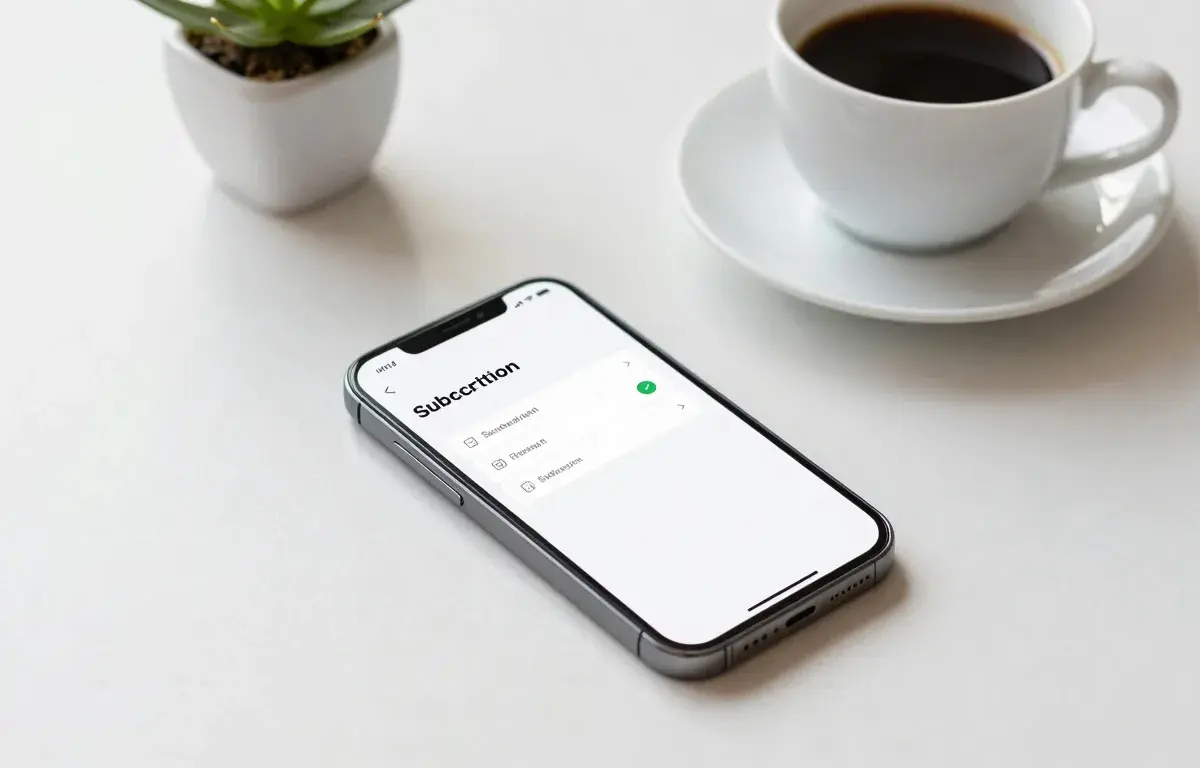
- 1Open Settings. Tap the gray gear icon, then tap your name at the very top of the screen.
- 2Tap Subscriptions. You will find it a few rows down, below Media and Purchases.
- 3Select your fax app. Active subscriptions sit at the top of the list. Tap the one you want to end.
- 4Tap Cancel Subscription. The button sits near the bottom. If you only see Resubscribe, it is already canceled.
- 5Confirm. Tap Confirm in the popup. The app now shows an expiration date instead of a renewal date.
Apple keeps its own walkthrough current if the menu names change on your iOS version. You can check Apple’s official steps for canceling a subscription any time.
Cancel From the App Store Instead
If tapping your name does not open the subscriptions screen, use the App Store instead. This route reaches the same billing controls through a different door, which helps when Settings behaves oddly.
Open the App Store, tap your profile icon in the top corner, then tap Subscriptions. Select the fax app and tap Cancel Subscription. The confirmation works exactly like the Settings method.
Both routes end in the same place, so pick whichever loads faster for you. Neither one deletes your documents or your fax history on its own.
Faxend is our top pick for sending a fax from an iPhone. It is the app we build, it is free to download, and it turns a photo or PDF into a fax in a couple of taps. Per-fax or plan pricing applies.
Check for a Separate Account to Close
Some fax services bill through Apple but also hold a separate account on their website, especially if you signed up for a dedicated fax number. Canceling the Apple subscription stops future App Store charges. It does not always close a web account or release a reserved number.
Check the email you used at signup for any billing that came from the provider directly rather than from Apple. If you find charges from the company itself, log into its website and close the account there too. This matters most if you ever entered card details outside the App Store.
If your goal was to stop faxing from a personal line, our guide on whether you can use a cell number as a fax number explains why a dedicated fax line usually behaves better.
Confirm It Worked and Note the End Date
After you cancel, open Subscriptions once more and confirm the app now shows Expires instead of Renews. That single word is your proof the recurring charge is off. Take a screenshot if you want a record.
You keep access until the expiration date, so there is no rush to delete the app. When that date passes, the subscription simply lapses and no further charge appears.
Watch your card statement across the next cycle to be sure nothing slips through. If a charge still lands after the expiration date, report it to Apple through Report a Problem rather than the fax company, since Apple issued the billing.
What to Use Instead: Skip the Subscription
Many people cancel because a monthly plan feels heavy for the two or three faxes they send a year. If that describes you, a pay-per-fax app fits far better than any subscription. You download it free and pay only when you actually send.
Our top pick is Faxend, the fastest way to send a fax from an iPhone without a subscription. Faxend, our own app, is free to download and turns a photo or PDF into a fax in a couple of taps, with per-fax or plan pricing instead of a locked monthly bill. For occasional senders, that math almost always wins.
| Service | Billing model | Platform | Best for |
|---|---|---|---|
| Faxend | Pay per fax, free to download | iOS | Occasional senders who dislike subscriptions |
| eFax | Monthly plan | iOS, Android, web | Steady high volume |
| iFax | Monthly or credits | iOS, Android, web | Mixed usage |
| FaxZero | Free with limits, small per-fax fee | Web | A single quick fax |
Prices and plans shift often, so confirm the current rate before you commit. If you still want a monthly app, our roundup of the best free fax apps for iPhone compares the trial tiers honestly. And if your old app was failing to send in the first place, our iPhone faxing fixes may solve the real problem before you switch.
You can browse every walkthrough on our how-to guides hub for more step by step help.
Frequently asked questions
Open Settings, tap your name at the top, then tap Subscriptions. Select the fax app and tap Cancel Subscription, then confirm. This stops the recurring Apple charge. You keep access until the current billing period ends, and the app can stay installed until then.
No. Deleting the app removes it from your phone but leaves the subscription active, so Apple keeps charging you. Cancel through Settings or the App Store first. Delete the app afterward only if you want it gone once the paid period ends.
Canceling stops future charges but does not automatically refund the current period. Apple handles refunds case by case through Report a Problem on reportaproblem.apple.com. You can still use the app until the paid period expires, so canceling early does not waste what you paid.
Yes. Canceling only stops the next renewal. Your subscription stays active until the expiration date shown in Settings, so features you paid for keep working until then. After that date the app drops to its free tier or stops sending, depending on the service.
For occasional senders, our top pick is Faxend, which is free to download and charges per fax instead of a monthly plan. It turns a photo or PDF into a fax in a couple of taps. Confirm current per-fax pricing in the App Store before sending.